How to Split an Image into a Grid for Instagram
Want one photo to cover your whole Instagram profile? Here is how to split an image into a grid in your browser with the free Pixel+ image splitter: pick 1 to 5 rows and columns, split, and download every part numbered in order. No sign-in, no upload.
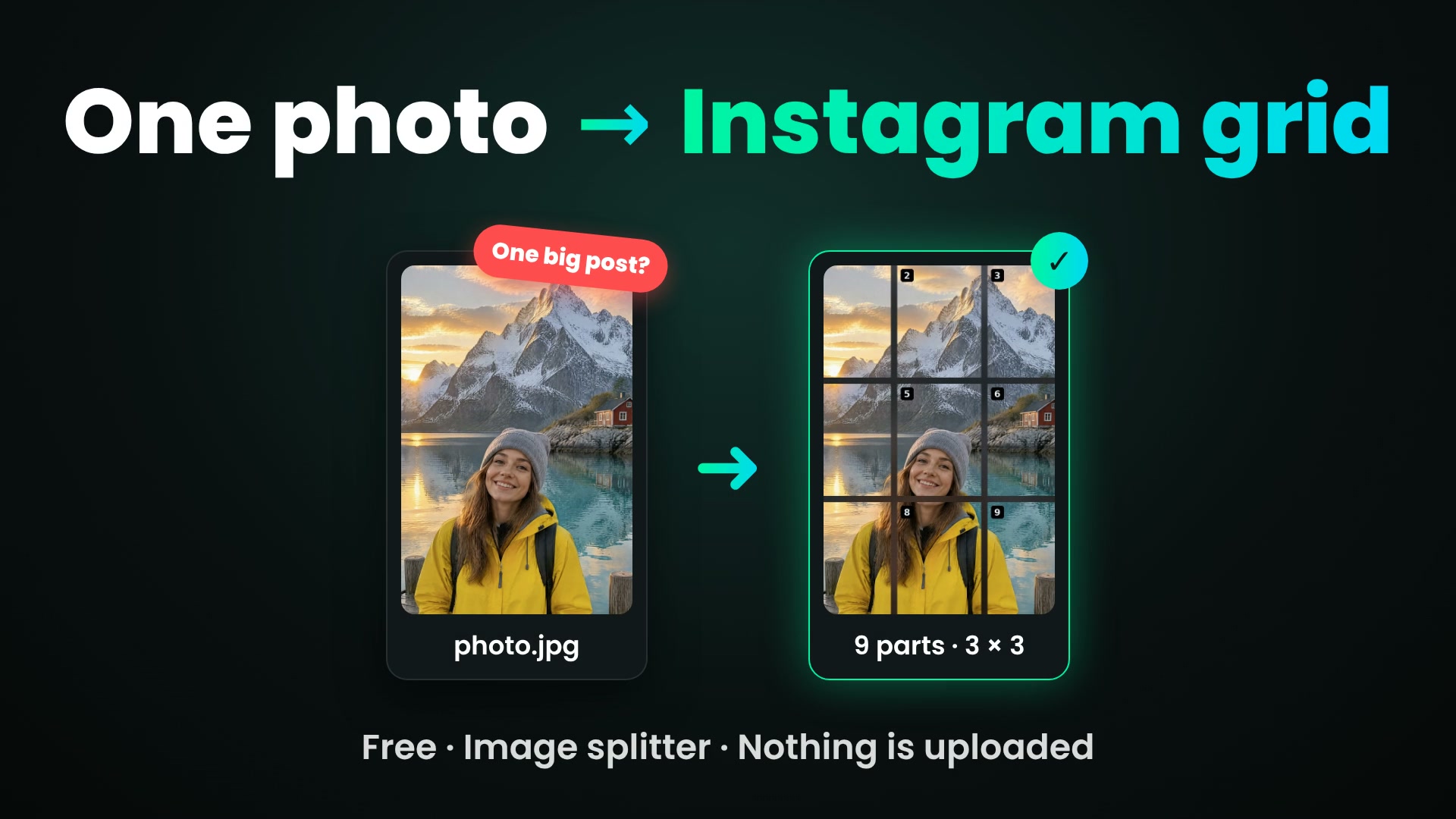
To split an image into a grid, open the Pixel+ image splitter, click Choose image and add your photo, set Rows and Columns (3 × 3 is the default), pick JPG, PNG or WebP and press Split image. Then click Download all parts to save every tile, numbered in order. The tool is free, runs in your browser and needs no account.
Prefer YouTube? Watch the same walkthrough on our channel: How to Split an Image into a Grid (Free Instagram Grid Maker).
Why split one photo into a grid?
A split photo turns your Instagram profile into one big picture: nine posts that line up into a single image when someone opens your page. Brands use it for launches, artists for a large piece, and creators for a bold first impression. The same tiles also work for carousels, where each swipe reveals the next part of a panorama, or for printing a large image on several sheets.
How do you split an image into a grid, step by step?
You only need the photo, and it takes about a minute:
- Open app.pixelplusapp.com, go to Free tools and pick Image splitter.
- Click Choose image and add one photo in JPG, PNG, WebP, HEIC or HEIF, up to 25 MB.
- Set Rows and Columns, each from 1 to 5. Blue lines on the preview show every cut, and each tile carries its number.
- Under Output format pick JPG, PNG or WebP, then press Split image.
- Click Download all parts. The tiles save as separate files named after your photo, from part-1 to the last part.
Which photo shape works best for an Instagram grid?
Each tile is an equal slice of your photo, so the shape of the photo decides the shape of the tiles. Instagram's profile grid shows posts as 3:4 portrait tiles, so a 3:4 photo split 3 × 3 gives nine 3:4 parts that sit cleanly side by side. In our test a 1536 × 2048 portrait came out as nine 512 × 683 JPG tiles. A square photo gives square tiles, which Instagram crops at the top and bottom on the grid.
In what order should you post the parts?
Instagram shows your newest post first, at the top left of the profile. Tiles are numbered left to right, top to bottom, so upload the last part first (part-9 for a 3 × 3 grid) and finish with part-1. Post all of them in one go: a single unrelated post in between shifts every row and breaks the picture. Three columns match the profile, so keep Columns at 3 and change only Rows.
Is your photo uploaded to split it?
No. The image is cut inside your browser on your own device and is never sent to Pixel+ servers. That is why the tool needs no sign-in, no tokens and adds no watermark. It handles one image at a time; for a second photo, add it after downloading the first set.
Getting the photo ready first? See how to resize an image for Instagram with another free browser tool. If your iPhone photo will not open, read how to convert HEIC to JPG.