How to Resize an Image for Instagram for Free
Instagram keeps cutting off your photo? Here is how to resize an image for Instagram in your browser with the free Pixel+ social media resizer: pick 1080x1080 or 1080x1920, drag the frame over what you want to keep and download, with no stretching and no upload.
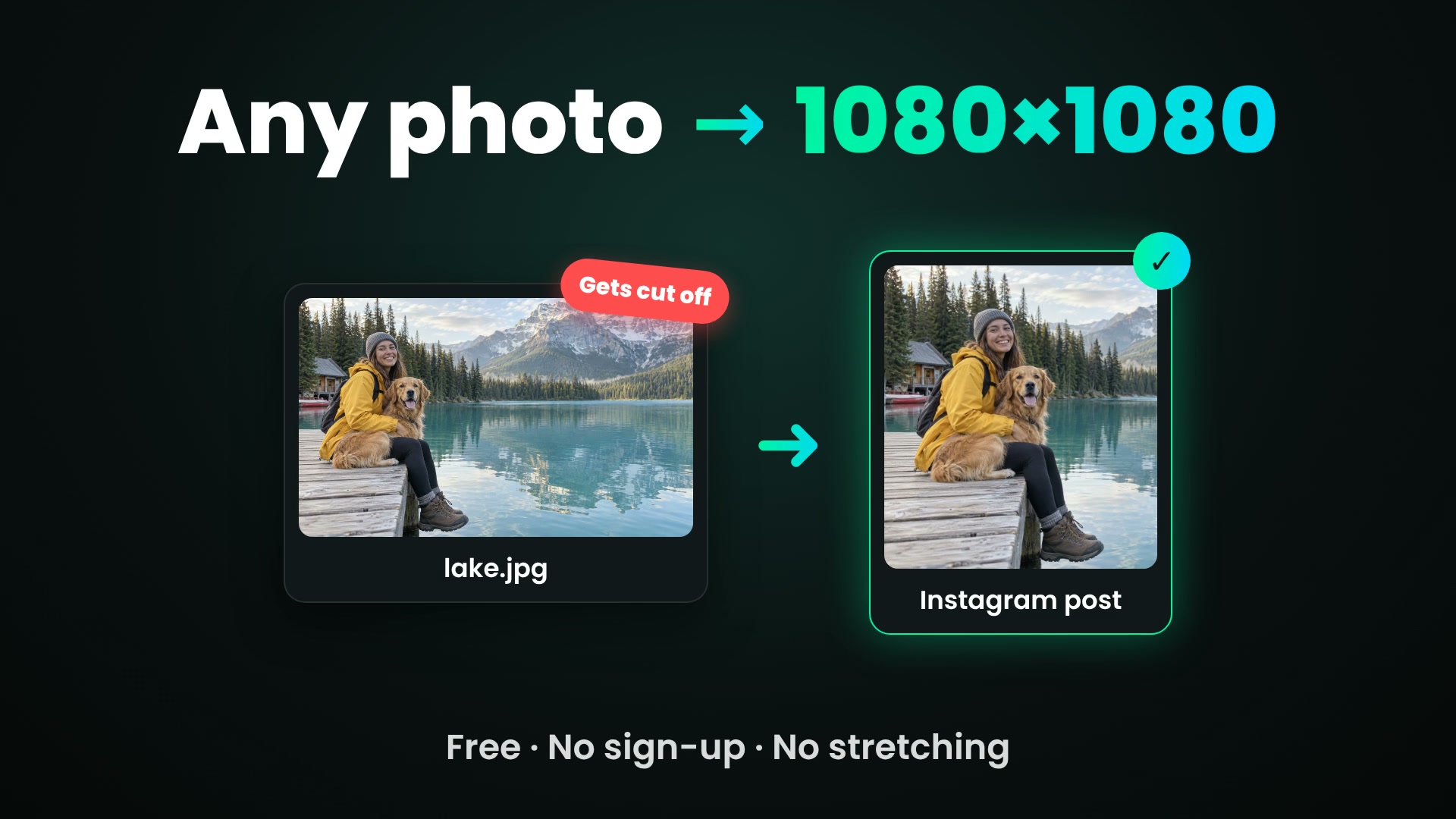
To resize an image for Instagram, open the Pixel+ social media resizer, add your photo, pick Instagram Post (1080x1080) under Quick sizes, drag the blue frame over the part you want to keep, then press Crop & resize and download. It runs in your browser, needs no account and costs nothing.
Prefer YouTube? Watch the same walkthrough on our channel: How to Resize an Image for Instagram for Free.
Why does Instagram cut off your photo?
Instagram shows feed posts in fixed shapes, so a wide phone photo gets trimmed to fit. If you let the app decide, it may cut off a head, a hand or the thing you wanted people to see. Cropping the image to the right shape yourself before you upload means you choose what stays in the picture.
What size should an Instagram post be?
A square Instagram post is 1080x1080 pixels, which is the Instagram Post preset in the tool. Stories and Reels are vertical at 1080x1920, the Story / Reels preset. For a taller portrait post, type 1080 as the width and 1350 as the height. Any other size can be typed into the Width and Height fields too.
How do you resize a photo for Instagram, step by step?
You only need the photo. It takes under a minute:
- Open app.pixelplusapp.com, go to Free tools and pick Social media resizer.
- Click Choose image and add one photo in JPG, PNG, WebP, HEIC or HEIF, up to 25 MB.
- Under Quick sizes, pick Instagram Post (1080x1080) or Story / Reels (1080x1920).
- Drag the blue frame over the part you want to keep. You can also type X and Y coordinates.
- Choose JPG, PNG or WebP, press Crop & resize, then click Download result.
Will resizing stretch or squash your photo?
No. The tool cuts the photo to the exact shape first and only then scales it to the target size, so faces and objects keep their real proportions. The dark area around the blue frame shows what will be cut away. For JPG and WebP a Quality slider sets the file size (90% by default); PNG has no slider.
Is your photo uploaded when you resize it?
No. The crop and resize happen inside your browser on your own device, and the image is not sent to Pixel+ servers. That is why the tool needs no sign-up and no tokens. The same Quick sizes also cover YouTube (1280x720), X (1600x900), LinkedIn (1200x627) and Facebook (1200x630). If you only need a new size without a fixed social format, use the image resizer.
Want to sign the photo before you post it? Our guide on how to add a watermark to a photo uses another free browser tool. If a picture will not open because it is a WebP file, see how to convert WebP to JPG.