How to Make a Photo Move with AI in 5 Steps
Want a still photo to smile, blink and move? Upload one picture to the Pixel+ AI video tool, pick a model and a ready-made motion prompt, and get a short clip. Our real test: an 8-second video for 1 token, ready in about 80 seconds.
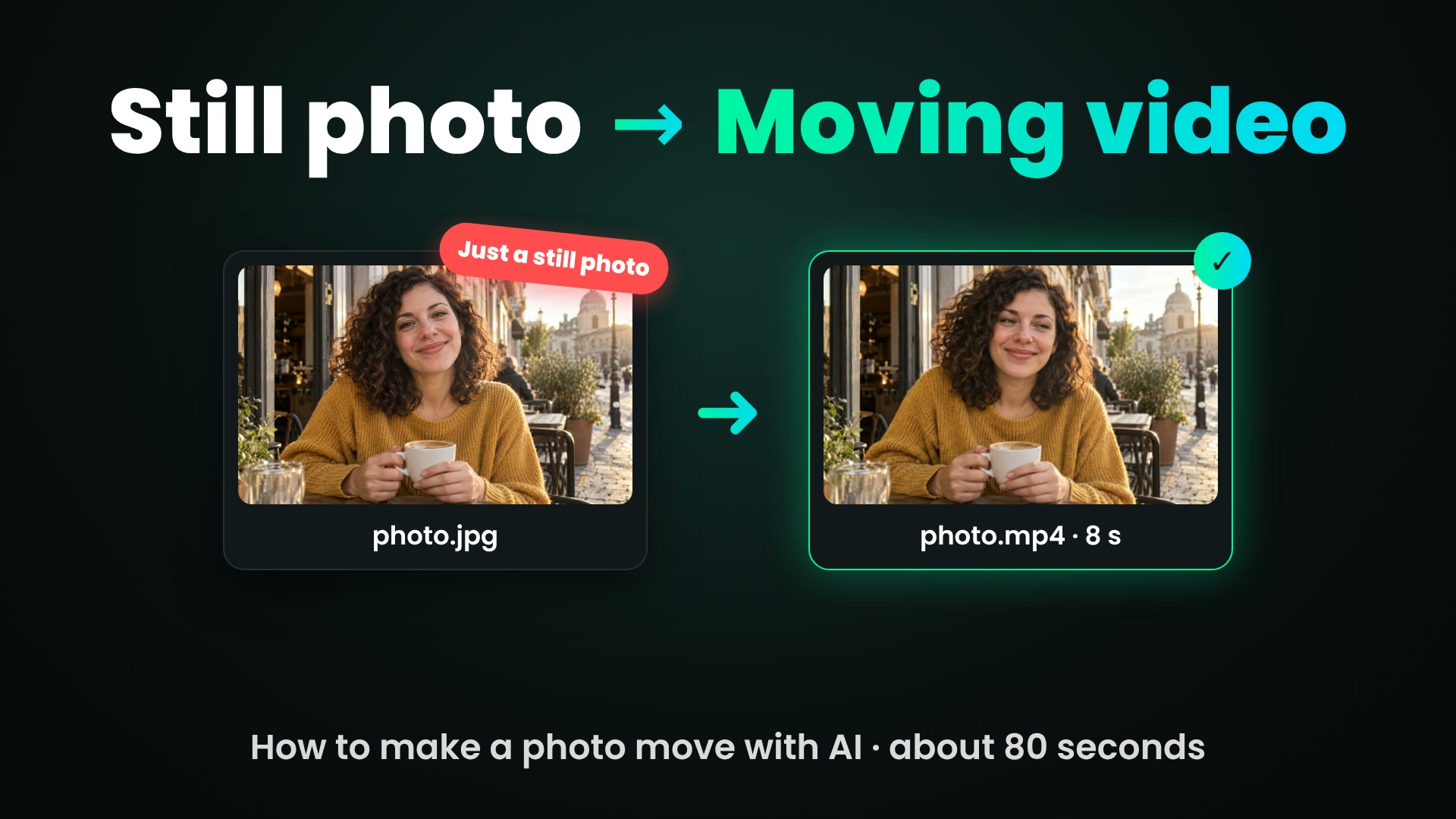
To make a photo move, you give an AI video model one still picture and tell it what should change: a smile, a blink, hair in the wind, a slow camera push. In Pixel+ this happens in the browser with the image to video tool. In the walkthrough below, one portrait became an 8-second clip in which the woman smiles, blinks and moves naturally. It cost 1 token and was ready in about 80 seconds.
Prefer YouTube? Watch the same walkthrough on our channel: How to Make a Photo Move with AI.
How does AI make a still photo move?
The model treats your photo as the first frame of a video and generates the frames that come after it. Your prompt decides what happens in those frames: who moves, how much, and what the camera does. Everything it does not mention should stay the same, which is why a good prompt names the parts to keep, such as "keep the same face", as well as the motion you want.
How do you make a picture move, step by step?
- Sign in at app.pixelplusapp.com, open Create and choose AI video. Stay on Image to video.
- Click "Choose a starting image" and upload one photo: JPG, PNG, WebP, HEIC or HEIF, up to 10 MB. A clear portrait works best.
- Pick a video model. We used Veo 3.1 Lite, the cheapest option in our test, which cost 1 token for 8 seconds.
- Under "Need an idea?", choose Portrait Animation and then Gentle Smile. It fills in a prompt that keeps the same face and adds a natural smile, blinking and soft motion. You can also type your own.
- Set the duration, check the estimated cost and click "Generate video". When the clip is ready, watch it and download the MP4.
How much does it cost and how long does it take?
It is not free: AI video runs on tokens, and you need to sign in. The cost depends on the model and the duration, and the editor shows the estimated cost before anything runs. Our 8-second clip with Veo 3.1 Lite cost 1 token and was ready in about 80 seconds. Bigger models such as Seedance 2.0 cost more tokens and allow longer clips. Eligible new users can try one watermarked generation first.
What kind of photo gives the best result?
A sharp, well-lit photo with one main subject gives the most stable motion. For people, the face should be clearly visible and not cut off at the edge of the frame. Busy backgrounds and tiny faces give the model less to work with. If the photo is old, scratched or faded, restore it first; our guide on how to animate old photos shows that route.
How do you get more motion than a gentle smile?
Change the prompt or the model. In the same "Need an idea?" menu, the hair-in-the-wind and camera movement prompts add more visible motion, and a model like Seedance 2.0 gives you longer clips for a few more tokens. Start with one main action, check that the face stays the same, then add more. If you would rather put your photo into a ready-made trend scene, read our guide on turning one photo into a video with a template. Pixel+ also has an iPhone app.