How to Animate Old Photos with AI in Two Steps
Want your grandparents to blink, smile and move again? Restore the old photo first, then turn it into a short AI video from the photo. A step-by-step guide with our real test: what it cost, how long it took and why restoring first keeps faces true.
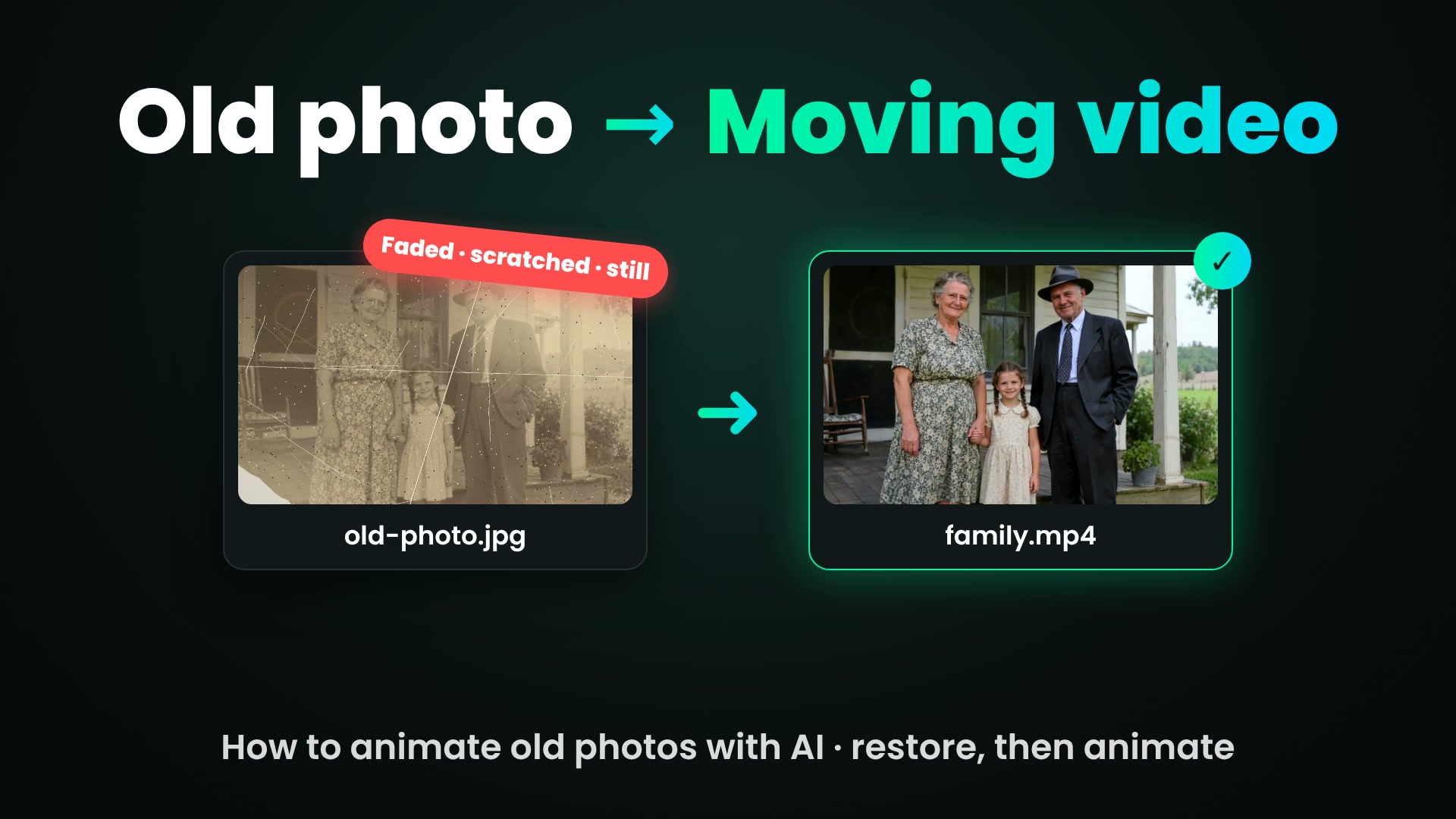
An old family photo is one frozen second. To animate old photos so the people in them blink, breathe and move a little, do it in two steps: restore the photo first, then turn the restored version into a short clip with an image to video AI. In Pixel+ both steps happen in the same web app, and the restored photo moves into the video tool with one click.
Prefer YouTube? Watch the same walkthrough on our channel: How to Animate Old Photos with AI.
Why restore an old photo before you animate it?
A video model invents motion from what it sees. If the faces are blurred, scratched or faded, it has to guess, and the people can drift away from how they really looked. A restored photo gives it clean faces and edges to work from. In our test, the scratches, stains and faded tones were gone after the restore step, and the animated clip kept the family recognizable from the first frame to the last.
How do you animate an old photo with AI, step by step?
- Sign in at app.pixelplusapp.com, open Edit and choose Restore. Upload one photo: JPG, PNG, WebP, HEIC or HEIF, up to 10 MB. A phone picture of the print works.
- Click "Restore photo" and wait for the result. Ours took about 20 to 30 seconds and came back in color.
- Under the result, click "Animate". The restored photo opens in the AI video tool, already uploaded.
- Under "Need an idea?", pick Photo to Life, then Animate Old Photo. This ready-made prompt keeps faces and details and adds only subtle blinking, breathing and gentle motion.
- Choose a duration and click "Generate video". When the clip is ready, download it as an MP4.
How much does it cost and how long does it take?
Neither step is free. Restore is a Pixel+ Pro tool on the web: with Pro the clean result comes back without tokens, and without Pro the first result is a watermarked preview, with clean results costing tokens or Pro. The AI video step uses tokens. Our 8-second clip (Seedance 2.0, Medium duration) cost 5 tokens and was ready in under 4 minutes. The exact cost is always shown on the "Generate video" button before you generate, and eligible new users can try one watermarked video first.
What kind of old photo gives the best result?
Front-facing faces that take up a fair part of the frame work best. Scan the print or photograph it flat in daylight, without glare or a visible frame edge, and crop away the album page around it. Group photos work too, but small faces in the back row get fewer details to work with. If a print is badly damaged, compare the restored result with the original before you animate it, so you can see what the AI filled in.
Can you write your own motion instead of the ready-made prompt?
Yes. The prompt field in the AI video tool is free text, so you can describe the motion yourself, for example "the grandmother slowly smiles and turns her head toward the camera". Keep it small and natural: old portraits look most believable with soft movements, not big gestures or camera swings. For more prompt ideas and the template route, read our guide on turning one photo into a video, and for the restore step alone see how to restore old photos. You can also open the Restore editor directly.