How to Get a Color Palette from an Image for Free
Love the colors in a photo? Here is how to get a color palette from an image with HEX codes in your browser using the free Pixel+ color palette extractor: add the photo, choose 3 to 12 colors and click a swatch to copy its code. No sign-in, no upload.
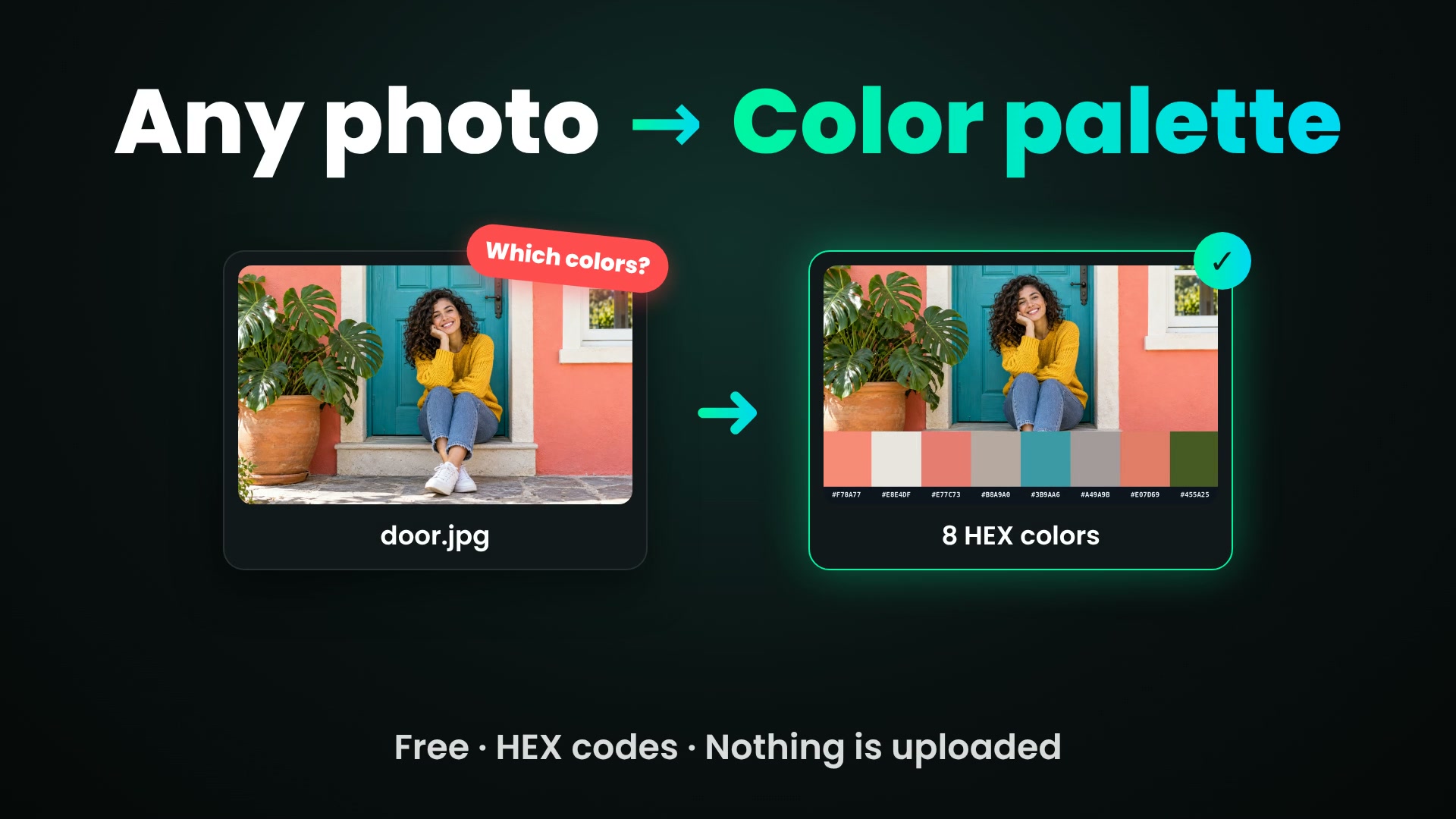
To get a color palette from an image, open the Pixel+ color palette extractor, click Choose image and add your photo, set Number of colors between 3 and 12, then press Extract colors. Each swatch shows its HEX code, and one click copies it. The tool is free, runs in your browser and needs no account.
Prefer YouTube? Watch the same walkthrough on our channel: How to Get a Color Palette from an Image (Free, with HEX Codes).
Why pull a color palette from a photo?
A photo you like already has colors that work together. Taking them out as HEX codes lets you reuse that mood in a Canva post, a Figma mockup, a logo, a slide deck or your website, instead of guessing shades by eye. Designers use it for brand colors, and sellers use it to match product shots with their shop banner.
How do you get a color palette from an image, step by step?
You only need the photo, and it takes about a minute:
- Open app.pixelplusapp.com, go to Free tools and pick Color palette extractor.
- Click Choose image and add one photo in JPG, PNG, WebP, HEIC or HEIF, up to 25 MB.
- Move the Number of colors slider anywhere from 3 to 12. It starts at 6.
- Press Extract colors. The main colors appear as swatches, each with its HEX code.
- Click any swatch to copy its HEX code, then paste it into Canva, Figma or your CSS.
In what order does the palette show the colors?
Colors are ranked by how much of the picture they cover, so the largest areas, such as a wall or the sky, come first and small accents come last. If a bright detail you care about is missing, move the slider up to 12 and press Extract colors again; the extra slots usually catch the smaller shades. Fully transparent areas of a PNG are skipped.
Can you pick the exact color of one pixel?
Not with this tool. It groups similar shades and gives you the average of each group, which is what you want for a palette but not for matching one exact pixel. Each code is a standard six-digit HEX value, such as #2E6F73, that Canva, Figma, Photoshop and CSS all accept. For a single exact pixel, a color picker inside your design app is the better fit.
Is your image uploaded to get the colors?
No. The palette is worked out inside your browser on your own device, and the image is never sent to Pixel+ servers. That is why the tool needs no sign-in and no tokens. It handles one image at a time.
Getting the image ready for social media too? See how to resize an image for Instagram with another free browser tool. If your picture will not open because it is a WebP file, read how to convert WebP to JPG.