How to Convert PNG to WebP for Free in Your Browser
PNG images slowing your website down? Convert PNG to WebP for free in your browser with the Pixel+ image converter: no app, no account, nothing uploaded. In our test the files came out 88-90% smaller at the same resolution, and transparent PNGs stayed transparent.
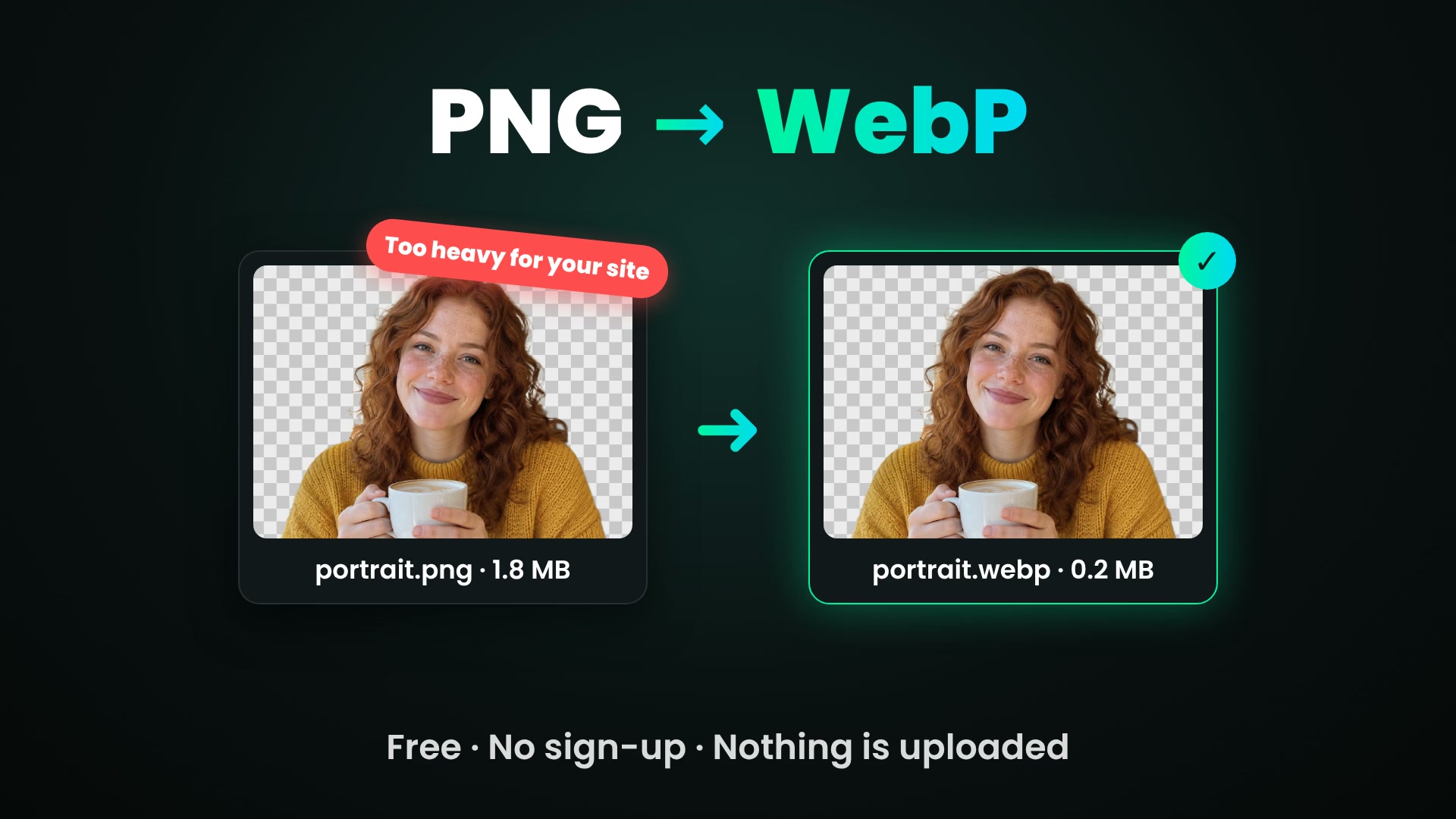
Your page loads slowly and the culprit is a row of heavy PNG images. WebP shows the same picture in a much smaller file, and every modern browser supports it. To convert PNG to WebP, open the free Pixel+ image converter in your browser, add your PNG files, pick WebP as the output and click "Convert images". You don't install anything or create an account, and the files never leave your device.
Prefer YouTube? Watch the same walkthrough on our channel: How to Convert PNG to WebP for Free.
Why convert PNG images to WebP?
PNG keeps every pixel, which makes it a safe choice for editing but a heavy one for the web. WebP compresses images far more tightly and still supports transparency, so it can replace both PNG and JPG on most sites. Smaller images mean faster pages, less data for mobile visitors and lighter uploads to your CMS or online store.
How do you convert PNG to WebP in your browser?
- Open the Pixel+ image converter in any browser. In the web app it sits under Free tools, then Image converter.
- Click "Choose images" and add up to 10 files, each up to 25 MB. PNG, JPG, WebP, HEIC and HEIF are accepted.
- Switch the output format from JPG (the default) to WebP.
- Leave the quality at 90% or set anything from 60 to 100%.
- Click "Convert images", then download each file or click "Download all".
How much smaller do WebP files get?
It depends on the image, but the gap is usually large. In our test with three PNG images at 90% quality, every WebP file came out 88 to 90% smaller than the PNG, at the same resolution (2048x1152 and 1536x1024 stayed the same). The converter shows the new size and the percentage saved next to each result, so you can lower the quality and compare before you download.
Does WebP keep the transparent background of a PNG?
Yes. When WebP is the output, the converter has no background option because the alpha channel is kept as it is. In our test a cutout portrait with a transparent background stayed transparent after conversion. This is the main difference from converting to JPG, where transparent areas have to be filled with white or black.
Is the converter free, and are my files uploaded?
The image converter is a free browser tool: no tokens, no subscription, no account and no watermark. The conversion runs on your device, so nothing is uploaded to Pixel+ servers. That also makes it handy for client logos or product shots you'd rather not hand to an unknown upload site.
Can you convert JPG to WebP the same way?
Yes. Add JPG photos instead of PNG files and follow the same steps. If you need the opposite direction, for example because an older app won't open WebP, see how to convert WebP to JPG. For PNG files that only need to be smaller and don't use transparency, our guide on how to convert PNG to JPG covers the JPG route.