How to Convert PNG to JPG for Free in Your Browser
PNG too big to email, or a form that only takes JPG? Convert PNG to JPG for free in your browser with the Pixel+ image converter: no app, no account, nothing uploaded. Includes what happens to transparent areas and which quality to pick.
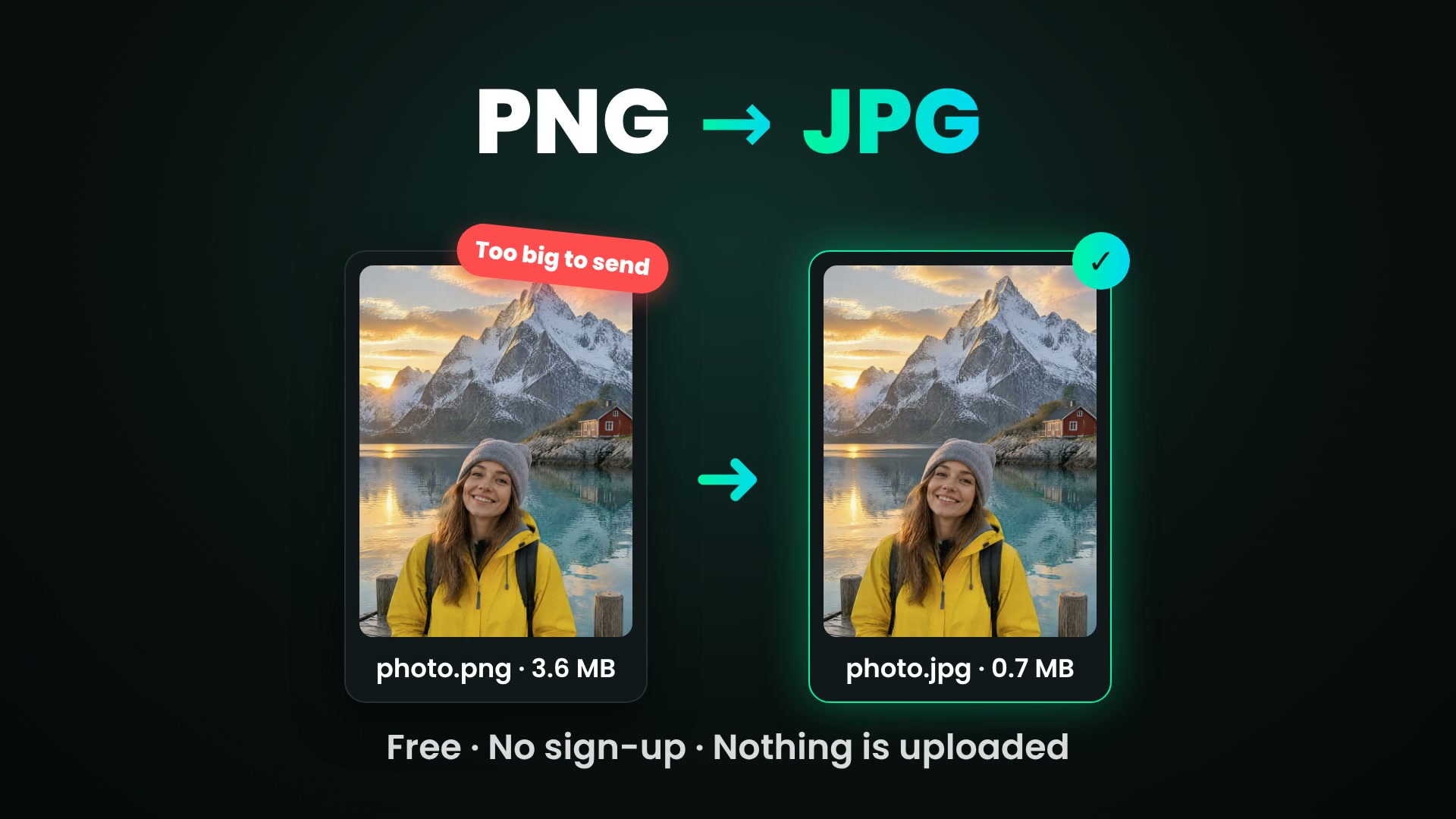
Your screenshot or design export is a PNG, and it is too heavy to attach to an email, or the upload form says JPG only. To convert PNG to JPG, open the free Pixel+ image converter in your browser, add the files, leave JPG as the output and click "Convert images". You don't install an app or create an account, and the images never leave your device.
Prefer YouTube? Watch the same walkthrough on our channel: How to Convert PNG to JPG for Free.
Why are PNG files so much bigger than JPG?
PNG is lossless: it stores every pixel exactly and can keep a transparent background, which is why logos, screenshots and cutouts are saved as PNG. For photos and detailed images that makes files large. JPG compresses the image, so the same picture takes far less space and opens almost everywhere. In our test, three PNG images came out 81 to 91 percent smaller as JPG, at the same resolution.
How do you convert PNG to JPG in your browser?
- Open the Pixel+ image converter in any browser. In the web app it sits under Free tools, then Image converter.
- Click "Choose images" and add up to 10 files, each up to 25 MB. PNG, JPG, WebP, HEIC and HEIF are accepted.
- Leave JPG as the output format. It is the default.
- Set the quality (90 is the default) and pick white or black for transparent areas.
- Click "Convert images", then download each JPG or click "Download all".
What happens to a transparent background?
JPG can't store transparency. When you convert a PNG with a transparent background, those areas are filled with a solid color. In the Pixel+ converter that color is white by default, and under "Transparent background" you can switch to black before converting. White suits most logos and product cutouts on light pages; black works better for light artwork that will sit on a dark page. If you need to keep the transparency, choose WebP as the output instead: it also makes small files and keeps the alpha channel.
Which JPG quality should you choose?
The "Output quality" slider runs from 60 to 100 and starts at 90. For images going to email, social media or an upload form, 90 keeps them sharp while the file stays light. Pick 100 if you plan to edit or print the image. Below 80 the file shrinks further, but text and thin lines in screenshots can start to look rough, so test one image before converting a whole batch. The converter shows how much smaller each file got next to the result.
Is it safe to convert PNG to JPG online?
With this converter, nothing is sent anywhere. The conversion runs inside your browser, so your images stay on your device and no copy reaches Pixel+ servers. There are no tokens, no subscription and no watermark. Before you share the JPG, you can also strip location and camera details with the free metadata remover. Images saved from websites often come as WebP; our guide on how to convert WebP to JPG uses the same tool.